Features
Design comparison
Link a Figma file to a website project and let layernote measure every difference between the design and the live page.
Design comparison checks a live page against the Figma frame it was built from and lists every difference it can measure: a color that is off by a shade, a heading one weight too light, a gap that grew from 24 to 32 pixels. Each accepted finding becomes a pinned comment with the expected and the actual value, ready for a developer or a coding agent.
Before you start
You need three things:
- A Website project with the live URL. Comparison is not a separate project type: it switches on inside a Website project the moment you link a design.
- A Figma file you have access to. layernote reads it through your own Figma account, so you connect Figma once when asked.
- A live page that is reachable without a login. layernote loads the page through its proxy to read the rendered styles; a page that redirects to a sign-in screen has nothing to compare. Use a public staging URL if production is behind a login.
Link your Figma file
Open the project and click the Figma icon
In a Website project, click the Figma icon in the top bar (Add design), or choose Figma design in the project menu. Once frames are linked, the project opens on the Pages view, where you can link more.
Paste the Figma file link
Use the link from Figma's Share button. Both
figma.com/design/…andfigma.com/file/…links work. The first time, layernote asks you to connect your Figma account; later imports reuse that connection.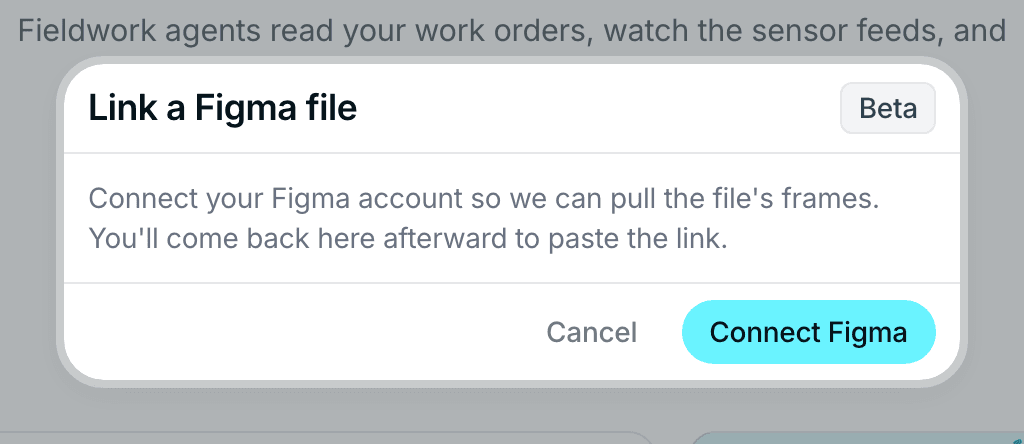
The first time, connect your Figma account. Pick the frames to import
layernote lists the top-level frames of the file. Select the ones that correspond to pages of the site, usually one frame per page per device, or use Select all. Frames you imported before show an Updated in Figma badge when the design changed since; importing them again refreshes the frame in place instead of duplicating it.
Group frames into pages
After the import, layernote proposes a grouping: frames with matching names and sizes become one page with up to three device slots, desktop, tablet and mobile. Each page owns the live URL it is compared against, prefilled with the project's website URL.
Check the proposal, fix any URL that is missing or wrong, and confirm. You can add pages by hand later, and assign or swap the frame in each device slot from the page card.
Run a comparison
Every device slot on a page card has a Compare to live button. Click it and layernote:
- loads the live URL in a hidden frame at that device width,
- reads the computed styles of every element on the page,
- matches those elements to the layers in the Figma frame,
- measures each matched pair and records every difference.
A run takes a few seconds for a normal page. One comparison runs per project at a time; the button tells you when another one is still busy. Open Comparison settings on the page card to switch categories on or off before a run, for example to skip image checks on a page with a rotating hero.
Review the findings
When the run finishes, the review modal opens with the findings grouped by category:
| Category | What it compares |
|---|---|
| Color | Text, background and border colors |
| Typography | Font family, size, weight, line height, letter spacing |
| Spacing | Gaps between elements and padding inside them |
| Layout | Size and position of elements |
| Border | Border width, color and radius |
| Shadow | Drop and inner shadows |
| Image, Icon | Images and icons that differ from the design |
| Missing | Layers in the design that were not found on the live page |
| Content & scope | Text and structure differences outside the other categories |
For each finding you see the expected value from Figma, the actual value on the live page, and a confidence score: how sure the matcher is that the two elements are the same one. Accept the findings that are real defects and reject the rest. If a finding compared the wrong element on the live page, flag it while you reject it; those flags improve matching over time.
Accepted findings are pinned to the page as comments, each carrying the expected and actual value, and land in the Open column of the board. If a run comes back clean, layernote tells you the page is a match.
Two warnings can appear at the top of the modal:
- Design coverage is limited: only a small part of the live page could be matched to the design, usually because the frame covers one section of a long page. The findings are still valid for that part.
- This doesn't look like the same page: almost nothing matched. Check the live URL on the page card and the frame in the device slot before you review anyway.
Fix and re-check
Findings are ordinary layernote comments, so the usual paths apply: move them across the board, discuss them in the thread, or hand them to a coding agent through AI access. The agent's verify tool and the deploy webhook both re-run the comparison for an item and resolve it only when the difference is gone, so nothing is marked fixed on a promise.
Run the comparison again whenever you like. Findings you already reviewed are remembered: a difference you rejected earlier is listed in its own section instead of being asked again. Comparison history on the page card lists the earlier runs.
How the engine works
The comparison is fully deterministic. No AI model guesses whether two things look alike: layernote extracts the design tokens from the Figma frame, meaning colors, type styles, spacing, radii and shadows, and compares them with the computed styles the browser reports for the matched live element. Every finding is a measurement. The same design and the same page always produce the same result, and the expected value is exactly what is in the Figma file.
Every property has a tolerance, and a delta within it is not reported. On the default sensitivity that is two ΔE units of color, one pixel of font size, two pixels of spacing or radius, and twenty-four pixels of position; the strict setting halves those, and loose widens them. You decide in the review whether a finding matters, and what you accept and reject is kept per finding, which is how matching is tuned over time without ever loosening a check on its own.
Troubleshooting
- Add a live URL for this page first: the page has no URL yet. Set it on the page card.
- Assign a design frame to compare: the device slot is empty. Import the frame or assign an existing one to the slot.
- Design comparison is available on the Studio and Team plans: the project owner's workspace is on Solo. Upgrading the owner's workspace unlocks it for everyone in the project.
- Your Figma connection expired: reconnect Figma from the import dialog. layernote never stores your Figma password, only the access Figma grants it.
- The live page renders blank or shows a login screen: the URL is not reachable anonymously, or the site refuses to load inside a frame. Use a public staging URL for the comparison.