Features
AI access
Hand open feedback to an AI: copy it as text, connect Claude Code or Cursor over MCP, or let every deploy verify the fixes.
Feedback is only useful once it is fixed. AI access is the set of ways to get a project's open feedback out of layernote and into whatever fixes it: a chat model you paste into, a coding agent working in your repository, or a deploy pipeline that proves the fix landed.
In a project, click the AI icon in the top bar, or choose Hand off to AI in the project menu. The panel has three rows, and each one works on its own.
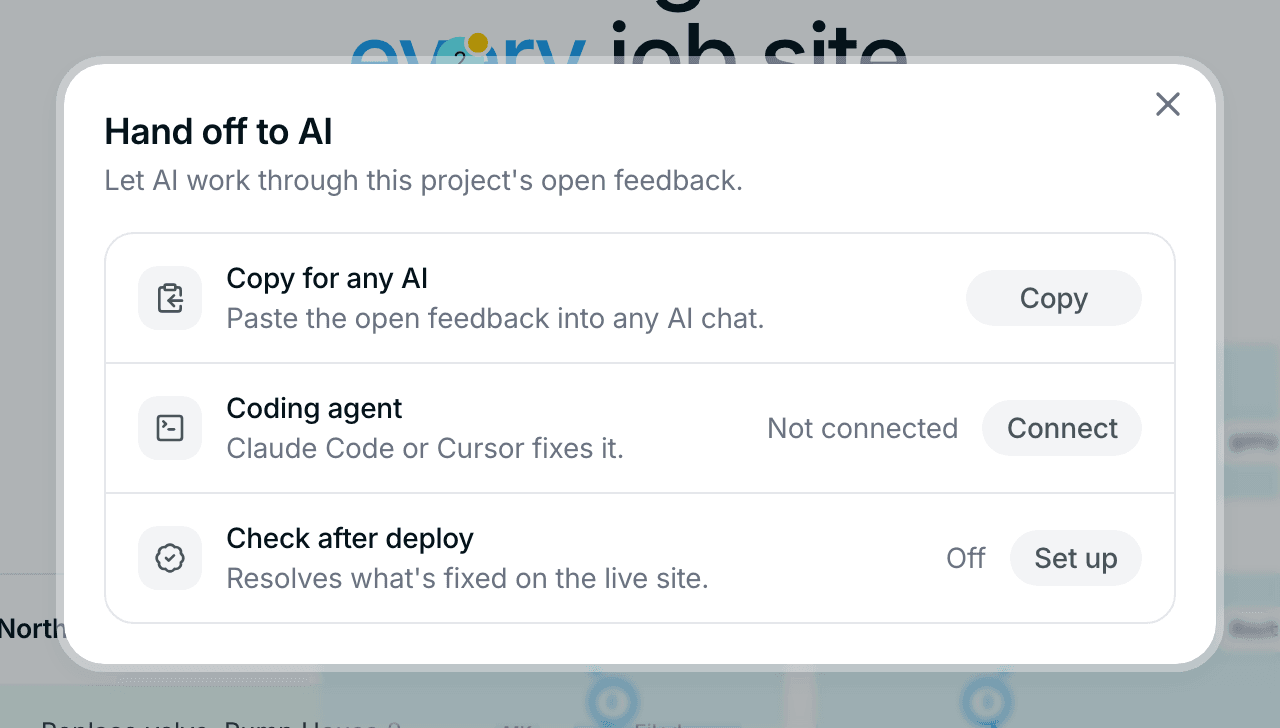
Three ways to hand off feedback
| Setup | Best for | |
|---|---|---|
| Copy for any AI | None | Pasting into ChatGPT, Claude, or a ticket |
| Coding agent | One command | Claude Code, Codex or Cursor fixing feedback in your codebase |
| Check after deploy | One webhook | Closing design comparison findings once a deploy proves them fixed (coming soon, with the comparison) |
Copy for any AI
Click Copy. layernote puts every open item on your clipboard as plain text: the page URL, the element, the comment thread, and for comparison findings the expected and actual value. Paste it into any AI chat, a pull request, or a ticket.
Coding agent
layernote ships an MCP server, @layernote/mcp, that gives your coding agent live access to the project's feedback over the Model Context Protocol. The server only supplies data and actions. It never calls a model itself, so it works with whichever agent you already use and adds nothing to your AI bill.
Create a token
Under Coding agent click Connect, give the token a name, for example the machine it will live on, and click Create token. The token starts with
mcp_and is shown once, so copy it right away. Tokens are scoped to one project.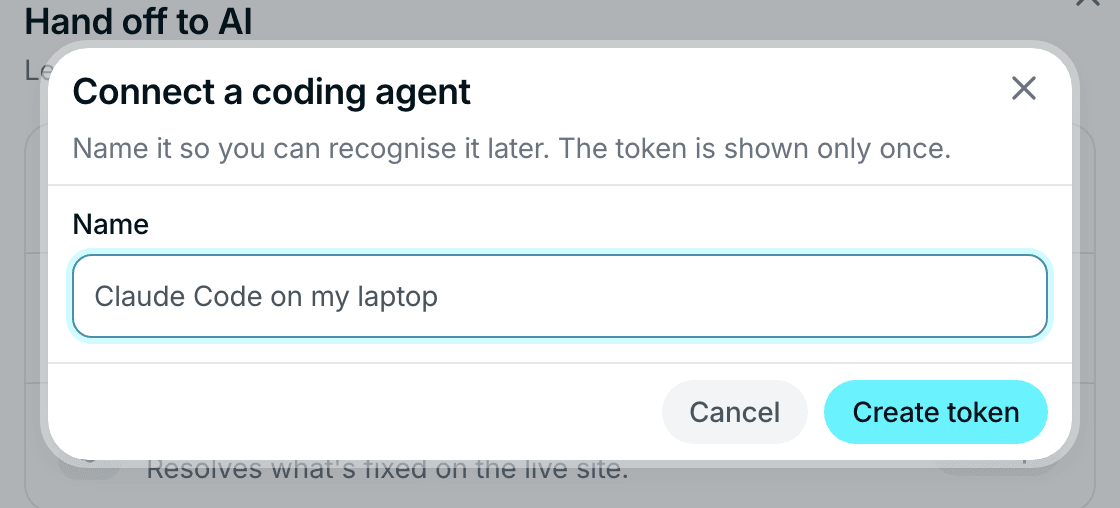
Name the token after where it will live. 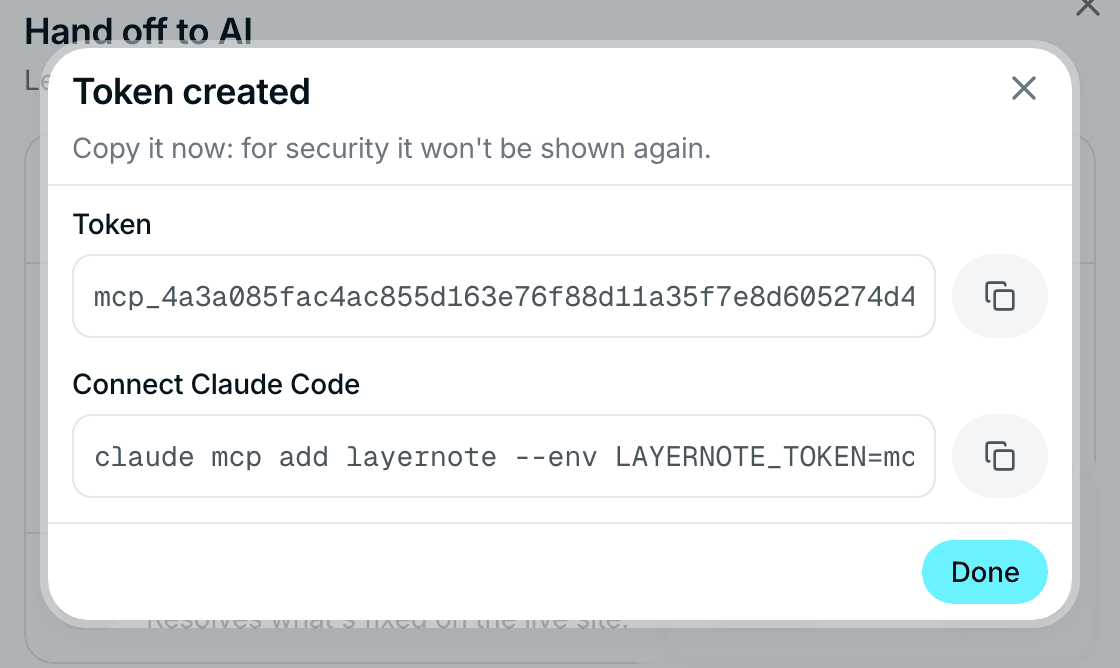
The token, and the command that registers it with Claude Code. Register the server with your agent
The dialog gives you a ready-made command for Claude Code. For other tools use the matching snippet below, replacing
mcp_xxxwith your token.claude mcp add layernote --env LAYERNOTE_TOKEN=mcp_xxx -- npx -y @layernote/mcpcodex mcp add layernote --env LAYERNOTE_TOKEN=mcp_xxx -- npx -y @layernote/mcp{ "mcpServers": { "layernote": { "command": "npx", "args": ["-y", "@layernote/mcp"], "env": { "LAYERNOTE_TOKEN": "mcp_xxx" } } } }For Cursor, save the JSON as
.cursor/mcp.jsonin your repository. The server talks tohttps://app.layernote.ioby default; setLAYERNOTE_API_URLas well if you run layernote somewhere else.Ask the agent
Inside your own repository, tell the agent something like: pull the open feedback from my layernote project and fix it. It lists the items, opens each one with its screenshot and selector, changes the code, and reports back in the thread.
Available tools
| Tool | What it does |
|---|---|
list_feedback | Lists open feedback (Open, In Progress, In Review) with page URL, CSS selector and, for comparison findings, the expected and actual value. Accepts a status filter. |
get_feedback | One item with the full thread and the element screenshot, returned as an image the agent can look at. |
verify_feedback | Asks layernote to prove the fix: it re-screenshots the live page, re-runs the design comparison and resolves the item only when the difference is gone. Prefer this over resolving by hand for comparison findings. |
resolve_feedback | Marks an item resolved. Needs a token with resolve permission; the resolution is attributed to the person who created the token. |
add_feedback_comment | Posts a comment to the thread, for example what was changed or why something is blocked. |
wont_fix_feedback | Closes an item as won't fix with a mandatory reason, for false positives and out-of-scope requests. |
set_feedback_status | Moves an item to any column on the project board, custom columns included. |
The tools map onto the same statuses your team sees on the board, so an agent's work shows up like anyone else's: comments in the thread, cards moving across columns, and a name on every resolution.
Check after deploy
A deploy webhook closes the loop without anyone clicking. In the Hand off to AI panel click Set up under Check after deploy and copy the webhook URL. It has this shape:
https://api.layernote.io/api/hooks/deploy/dh_…
Send a POST request to it after every deploy of the site. layernote answers 202 Accepted at once and then, in the background, re-checks the open design comparison findings against the live site: it takes a fresh screenshot, re-runs the comparison, and resolves the findings that are provably fixed. Findings that are still present stay open. The panel shows the result of the last check.
Only comparison findings can be measured this way. Ordinary comments are never closed by a deploy: resolve them yourself, or let your coding agent resolve them with a note on what changed. Until design comparison is open to your account, the check has nothing to close.
Any platform that can call a URL after a deploy works. In GitHub Actions, for example:
- name: Ask layernote to re-check open feedback
  run: curl -X POST "${{ secrets.LAYERNOTE_DEPLOY_HOOK }}"
Store the URL as a secret: whoever has it can trigger a check. New URL in the panel gives you a new one and stops the old one.
Security notes
- Tokens are stored hashed. layernote can never show a token again, only revoke it. Revoke from the panel and the agent loses access immediately.
- A token is scoped to one project. New tokens can read and resolve; the panel shows each token's access, and every resolution carries the name of the person who created the token.
- The MCP server runs on your machine and only talks to layernote. It never sends your code anywhere.
- The deploy webhook can only trigger a re-check. It cannot read or change feedback.