Features
Workspaces and folders
Organize by team or client: workspaces with roles and seats, nested folders with colors, and organize mode for ordering it all.
A workspace is where a team keeps its projects and its people. Inside it, folders keep clients and campaigns apart. Together they let one agency run twenty clients from one account without a client ever seeing another client's work.
Workspaces
Every account starts with one workspace. Create more when you need a hard wall between groups of people: a second studio, a partner agency you collaborate with, or a client who wants their own team inside layernote. Members of one workspace see nothing of another.
Switch between workspaces from the menu in the top left. Projects, folders, members and notification settings all live per workspace. The number of workspaces you can create depends on your plan; see Plans and limits.
Members and roles
Invite people into a workspace by email from Members. They join as Member; you can make someone an Admin from the same list. Each member has one of three roles:
| Role | Can |
|---|---|
| Owner | Everything, including billing and deleting the workspace |
| Admin | Manage members, folders and projects, and change workspace settings |
| Member | Work in every project: comment, assign, resolve, move cards |
Members count toward the seats in your plan. Reviewers who join a project through a share link are not members and never take a seat; see Client sharing.
Folders
Folders group projects inside a workspace, on the Studio and Team plans. Give each a name, an optional description and a color, and nest them as deep as you like: Clients › Acme › Website 2026. Move a project into a folder from its card menu with Move to, or drop it there in organize mode.
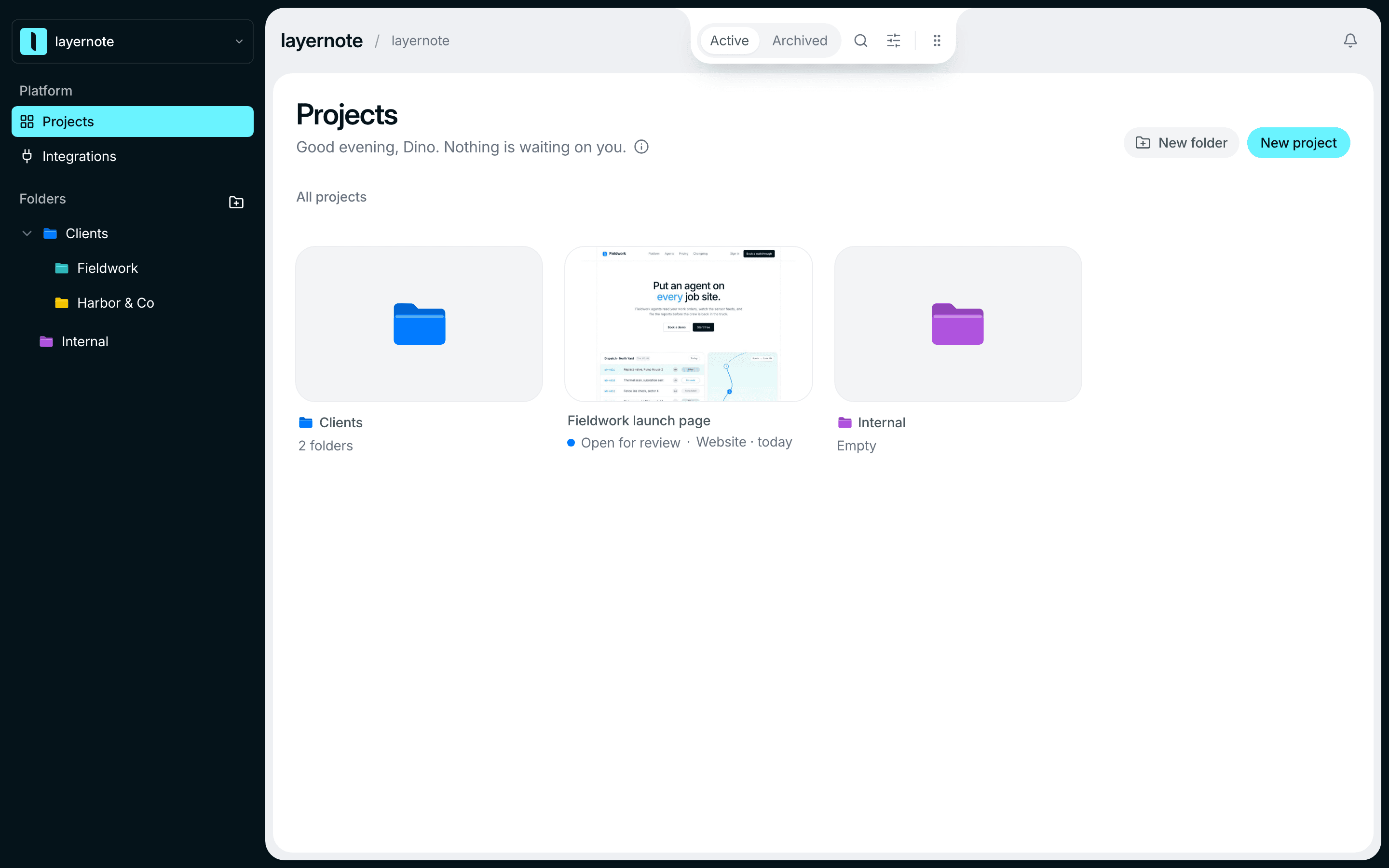
Typical setups:
- Agency: one folder per client, subfolders per site or campaign.
- Product team: one folder per release or sprint.
- Freelancer: Active, Waiting on client, Archive.
Organize mode
Switch on Organize mode in the projects view to reorder folders and projects by dragging. The order you set is the order everyone in the workspace sees, so the current client can sit at the top and the archive at the bottom. Click Done to leave organize mode.
Project types
Whatever the folder, a project is one of three types:
| Type | What you review | Notes |
|---|---|---|
| Website | A live site, loaded through layernote's proxy | Add a Figma file for design comparison |
| Figma design | Frames imported from a Figma file | Design-only review, no live site |
| Static files | Images and PDFs | Multi-page PDFs get a page strip; each image is its own page |
Every type supports the same annotations, board, sharing and AI access. Upload sizes for images and PDFs depend on the plan; see Plans and limits.
Notifications
layernote notifies you in the app when someone mentions you, assigns you or replies to your thread. Choose which of these show up under Settings, Notifications; that choice holds for your whole account.
By email, layernote tells you about new comments on your projects and about replies and mentions. Switch those emails on or off per project under Notifications in your avatar menu, inside the project, so a busy client project can stay quiet.