Features
Annotations
Pin a comment to the exact element, discuss it in a thread, give it a status, priority and owner, and inspect the styles behind it.
An annotation is a comment with a place. It knows which element it belongs to, what that element looked like at the time, and who has to do something about it. Everything else in layernote, the board, the share links, the agent handoff, is built on top of that one object.
Pin a comment
Switch the toolbar to Comment and click anywhere on the page, frame or file. A numbered pin lands on the element and a form opens next to it. Write the comment and, if you like, set the fields below right away; you can also leave them for later. Press Cmd+Enter (Ctrl+Enter on Windows) or the send button to post it.
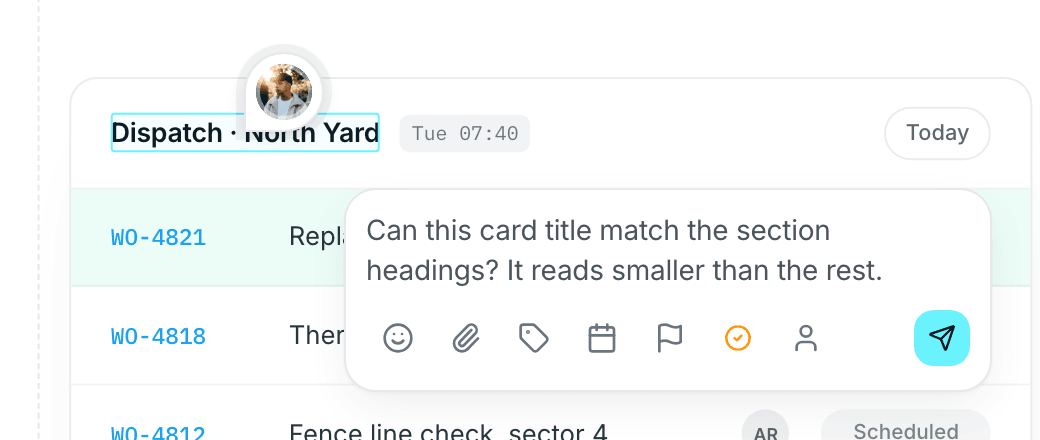
layernote stores three things with every pin: the element itself, its position, and a screenshot of what you were looking at. That is why a pin survives a redeploy that moves the element a few hundred pixels, and why a comment from last month still shows what the page looked like back then.
On a Website project the page is the live site, loaded through layernote's proxy, so you can scroll, open menus and navigate to other pages of the site before you pin. On a Figma project you pin on the imported frames; on a Static files project on the pages of a PDF or on each image.
Comment threads
Every annotation opens a thread. Reply, mention a teammate with @ to notify them, and attach files where a screenshot or a reference image says more than words. A thread can be resolved when the fix is in and reopened when it is not; both show up on the board immediately.
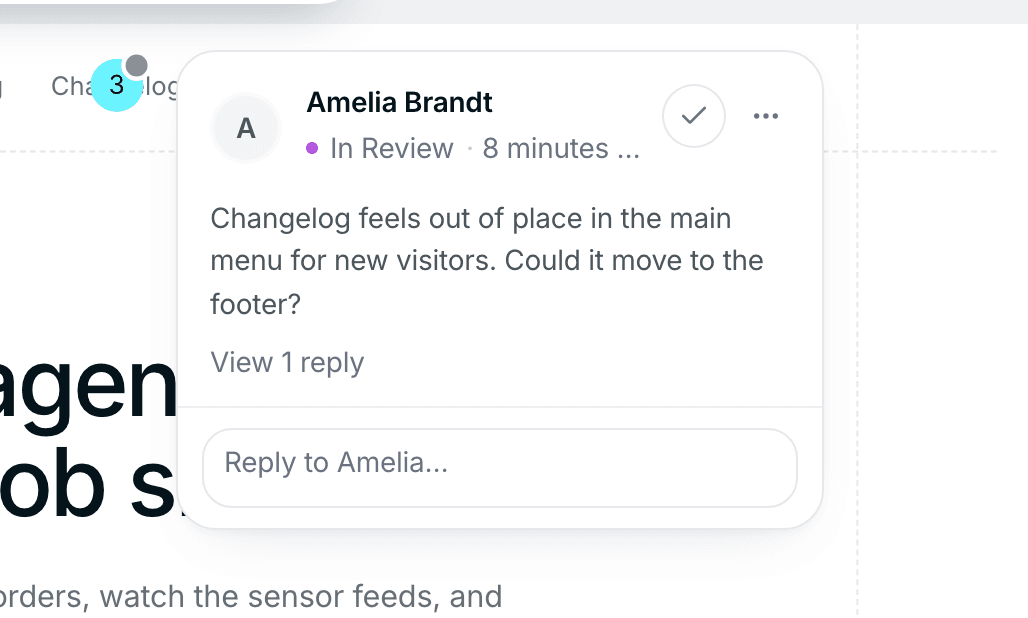
Reviewers who join through a share link can read threads and, unless the link is view only, reply in them. They cannot assign or resolve; those actions stay with the team.
Status, priority, assignee and labels
Each annotation carries the fields a task needs:
| Field | Values | Notes |
|---|---|---|
| Status | Open, In Progress, In Review, Resolved, Won't Fix | Statuses are the columns of the kanban board; custom columns show up here too |
| Priority | Low, Medium, High, Critical | Optional, sortable and filterable |
| Assignee | Any workspace member | Optional |
| Due date | A date | Optional, sortable and filterable |
| Labels | Your own | Create labels for the topics your team uses and reuse them |
Change any of them from the annotation, from the list in the sidebar, or by moving the card on the board. They are the same data seen three ways.
Inspect mode
Switch the toolbar to Inspect and click an element to see what the browser actually rendered: font family, size, weight and line height, colors, padding and margins, borders and radii. Switch the display unit to read values the way your team writes them.
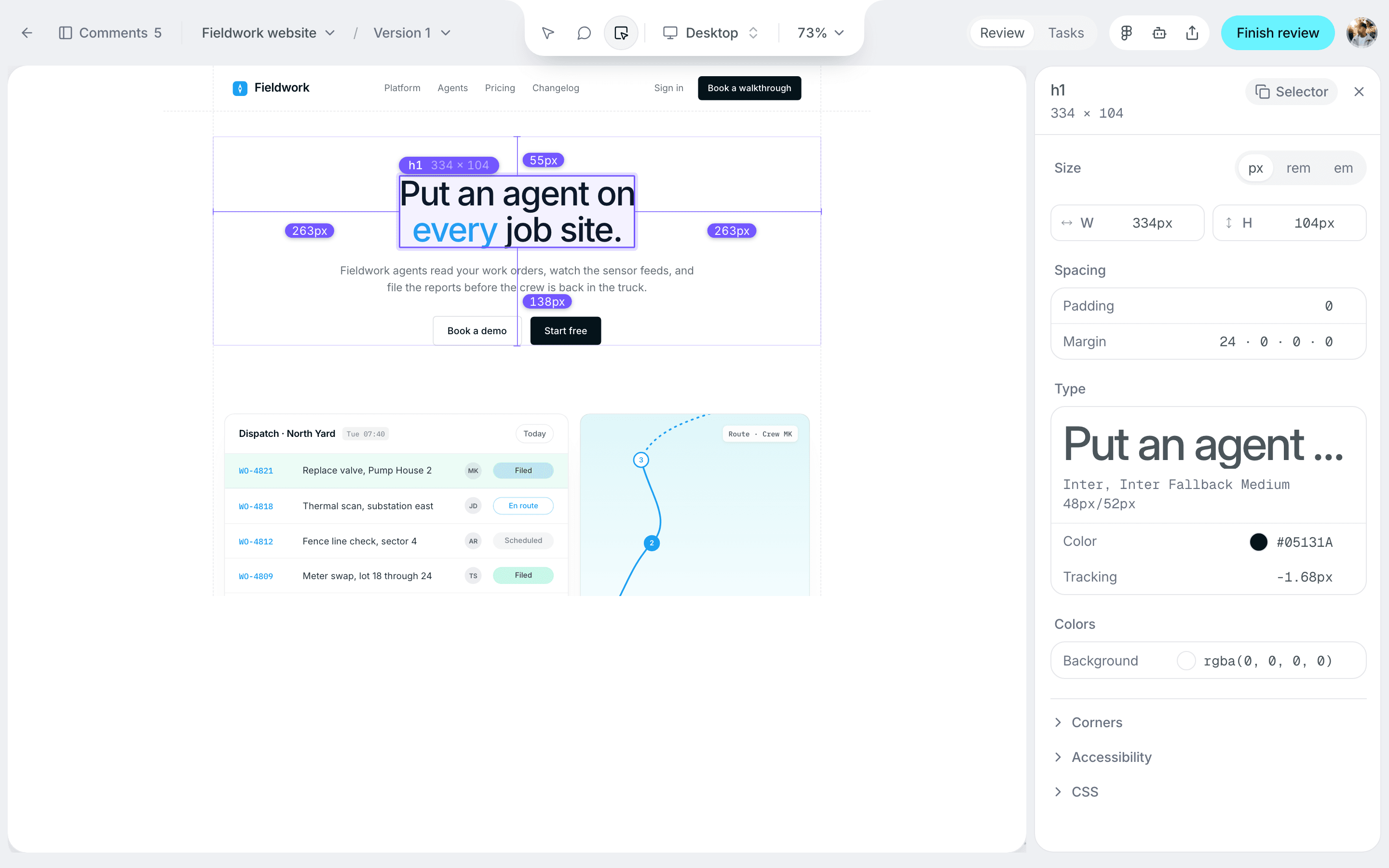
Inspect answers "what is it now" while a comment answers "what should it be". When a page has a linked Figma design, inspect also lists the design findings for that element, so the expected value is one click away. See Design comparison.
Devices and breakpoints
Website projects render at three widths: Desktop, Tablet and Mobile. Switch at the top of the canvas to review each breakpoint on its own, and pick the exact desktop width you want to check.
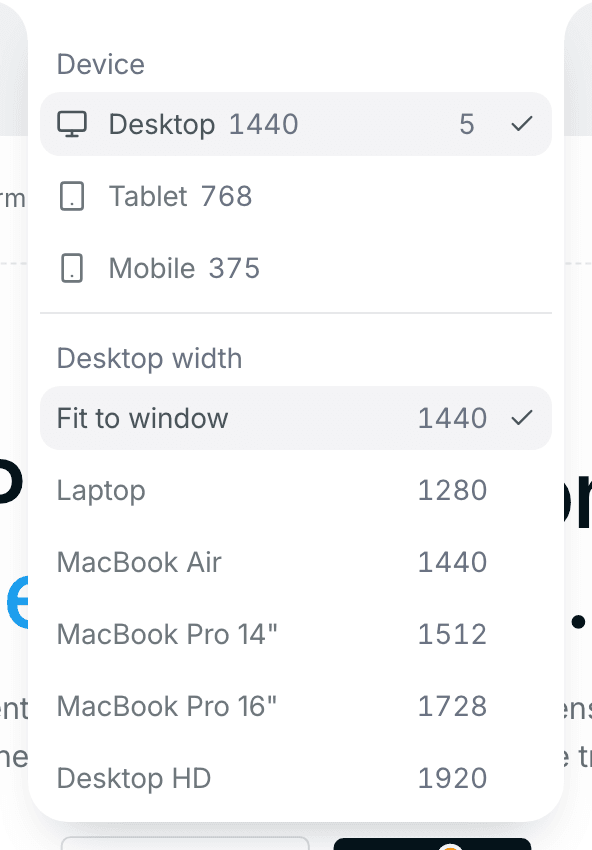
A comment made at mobile width is pinned to the mobile rendering, so "the menu overlaps the logo on phones" points at the actual overlap instead of a desktop page where nothing is wrong.
Figma projects follow the same idea: import the desktop, tablet and mobile frames and step through them per device.
Versions
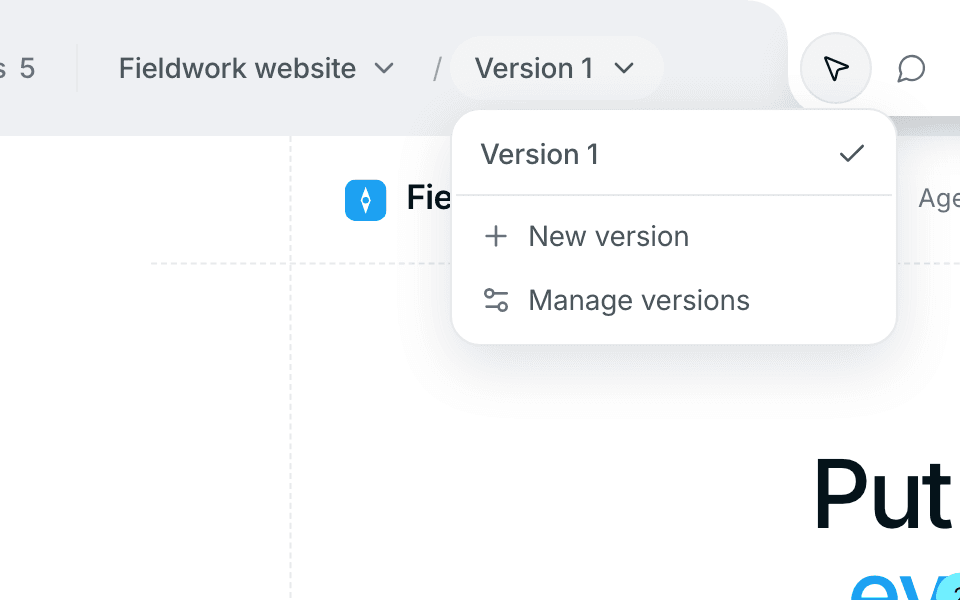
A version is a round of review. Every project starts with one, and every annotation belongs to the version that was active when it was made. When a redesign lands or a new sprint starts, create a new version from the version selector: the earlier round stays exactly as it was, comments included, and the canvas starts clean.
Switch back to an earlier version at any time to read its comments. Rename and delete versions under Manage versions. The version you are on cannot be deleted; switch first, then delete.
Filters and search
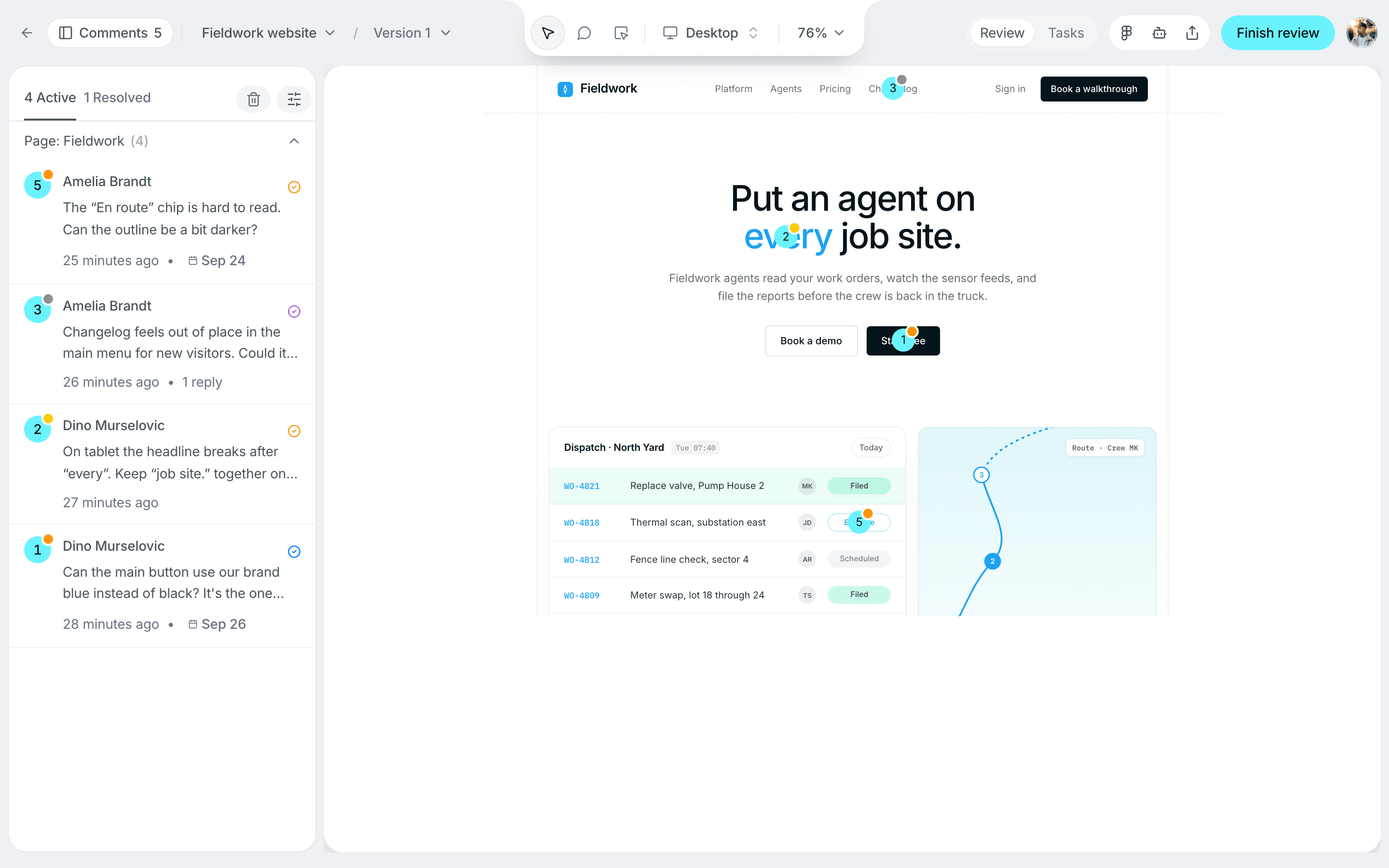
The sidebar lists every annotation of the project. Narrow it down by status, assignee, priority, label, date range or free text, sort by the field that matters right now, and use the quick filters for the cases that come up every day. Filters carry over to the board, so the sidebar and the columns always agree.
Real-time collaboration
layernote is live. When two people review the same project, each sees the other's pins as they appear, and the faces in the header show who else is looking. New comments, replies and status changes arrive without a refresh, for team members and reviewers alike.
Mentions, assignments and replies to your threads also reach you as notifications in the app. By email, layernote tells you about new comments on your projects and about replies and mentions; switch those emails on or off per project under Notifications in your avatar menu, inside the project.