Features
Kanban board
Every comment is a card. Move it across columns, shape the columns to your workflow, and let clients follow along.
Feedback tends to die in the gap between "noted" and "done". The board closes that gap: every annotation in a project is a card, the columns are the stages of your workflow, and moving a card is the same thing as changing the annotation's status. Nothing has to be copied into a separate task tool.
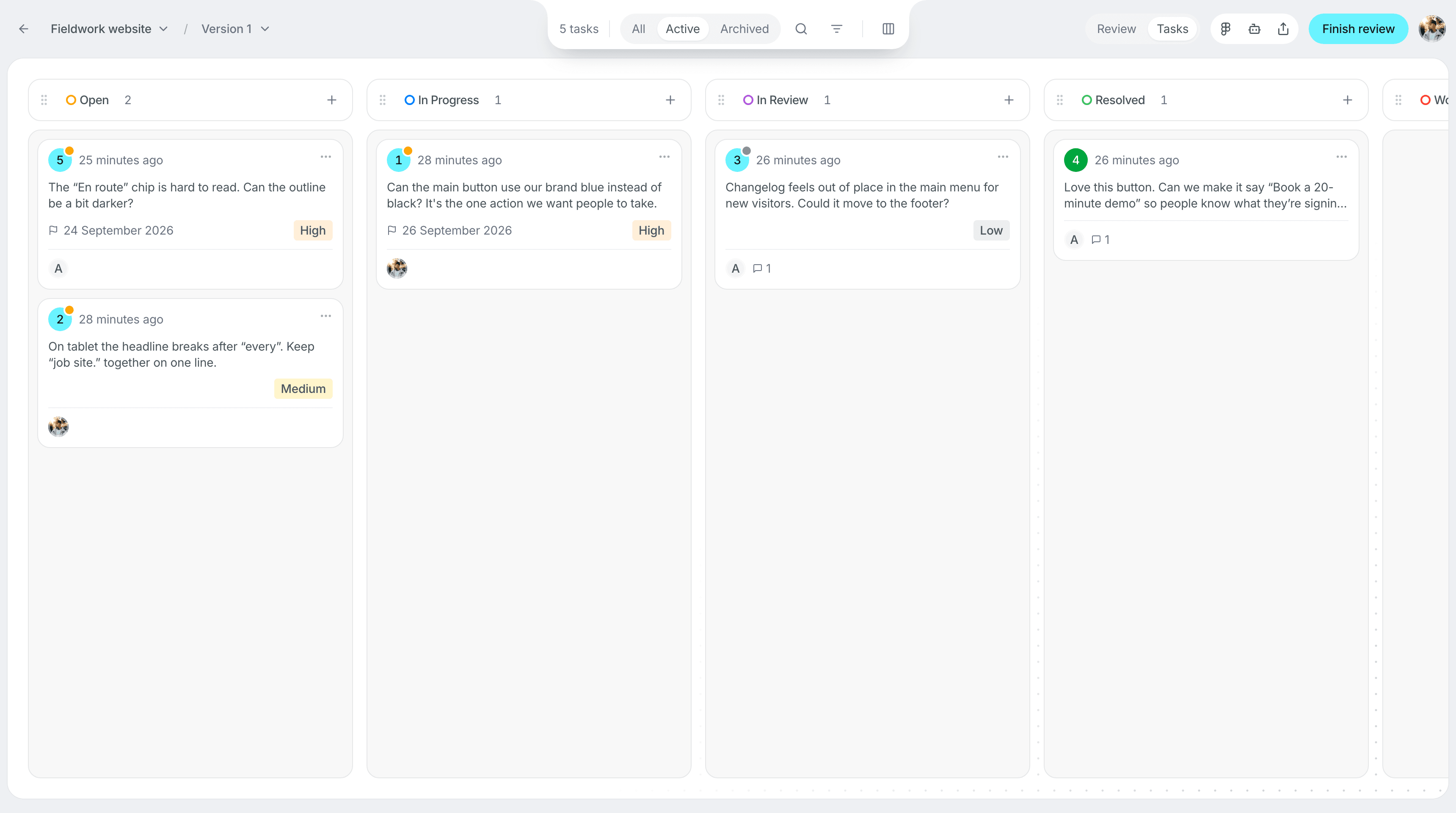
From comment to card
There is no step to take. The moment a comment is pinned it appears in the first column of the board, carrying its number, the element screenshot, the assignee, priority and due date. Open a card to read the full thread and reply from there; changes made on the canvas show up on the board and the other way around.
You can also add a card directly on the board, with a title and a description, for work that has no element to pin to yet. It behaves like any other annotation.
Columns
A new project starts with four columns: Open, In Progress, In Review, Resolved. They are a starting point, not a rule. From the board's column manager you can:
- add a column, for example Waiting on client or Deployed,
- rename any column and give it a color,
- reorder columns by dragging them,
- archive a column you no longer need and restore it later from the archive.
Columns are per project, so an agency can run a client's project on that client's vocabulary without touching the others.
Working the board
Drag a card to another column to change its status. Drag it up or down to reorder within a column. From the card menu, or the card itself, set the assignee, priority and due date, or delete the card, which removes the annotation everywhere.
Search cards by text, or use the filters in the board header to see only one member's work, one priority, or one label. The same filters apply to the annotation list in the sidebar, so the two views never disagree about what is open.
Filters
The board and the sidebar share one filter set:
| Filter | Use it for |
|---|---|
| Search | Any word in the comment or thread |
| Assignee | One person's queue, or everything unassigned |
| Priority | Critical and high first when time is short |
| Label | One topic, for example copy or accessibility |
| Date range | What came in during the last review round |
Sort by created date, due date or priority in either direction.
Clients on the board
Reviewers who join by share link do not see the board unless you allow it. On Studio and Team, switch on Kanboard access in the Share dialog and the client gets a read-only board next to the canvas: they can watch cards move from Open to Resolved, which answers "where are we" without an email. They cannot move cards, assign or resolve; those stay with the team.
Pair it with a feedback deadline and the client sees both what they still owe you and what you have already done.
Statuses everywhere
Columns are the project's statuses, and everything that talks about status uses them:
- Design comparison findings you accept land in the first column, ready to be picked up (coming soon, with the comparison).
- The MCP server exposes the columns to your coding agent, so
set_feedback_statuscan move an item to any column, custom ones included, andverify_feedbackmoves it to Resolved only when the fix is proven. See AI access. - The deploy webhook resolves design comparison findings that are provably fixed after each deploy and leaves the rest where they are (coming soon, with the comparison).