Features
Client sharing
Share a link, no account needed. Choose comment or view only, set a password and a feedback deadline with reminders, and pause comments when a round is closed.
Clients should not have to create an account to say "the button is the wrong blue". Every layernote project has a share link that opens straight onto the canvas: the reviewer types a name, and their first comment is pinned a minute later. Reviewers who come in this way never take a seat, on any plan.
Share a link
Open Share in the project header and copy the link. It points at the project, not at one page or one device, so a reviewer can move through the whole site and every breakpoint from that single link.
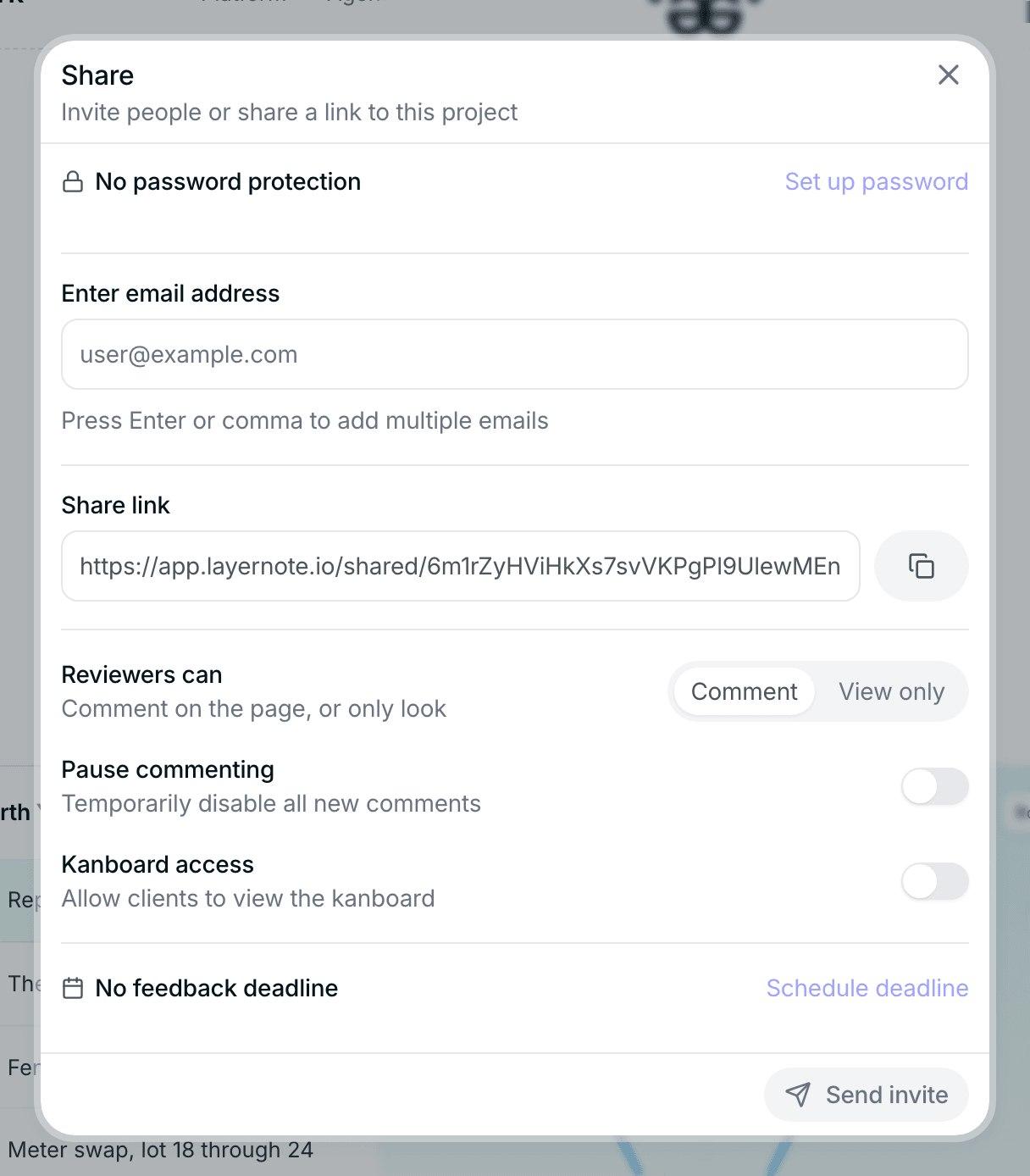
The link stays valid until you change its password. Everything a reviewer leaves through it is attributed to the name they gave, and lands in the project like any other comment.
What reviewers can do
Under Reviewers can in the Share dialog, pick one of two levels for the link:
| Level | Reviewers can |
|---|---|
| Comment | Pin new comments and reply in threads |
| View only | Look at the project and read the comments, nothing else |
Comment is the right default for a client review; View only suits a stakeholder who should see the state of things without adding to it. Either way, assigning, resolving and setting status, priority or labels stay with workspace members.
Password protection
Click Set up password in the Share dialog and enter one. Reviewers are asked for it before the project opens. Use it for anything not yet public: a site under NDA, a redesign before launch, a client's admin screens.
Changing the password locks out everyone who had the old one, which doubles as a way to end a review round cleanly.
Feedback deadline and reminders
A review that has no end date rarely ends. Use Schedule deadline in the Share dialog to set a date and time, and pick the email reminders you want: three days before, one day before, and on the day itself, a few hours before the deadline. Reminders go to the people you invited by email, so you don't have to chase anyone. Setting a new deadline replaces the reminders that had not gone out yet.
Pause commenting
Once a round is closed, switch on Pause commenting. The project stays readable through the link, existing threads stay open for the team, but the comment tool is switched off for reviewers, and hovering it tells them commenting is paused. Switch it off again for the next round; nothing is lost in between.
Board access for clients
By default reviewers only see the canvas. On the Studio and Team plans, switch on Kanboard access and they also get a read-only view of the board, with every card and its column. Most clients stop asking for status updates once they can see cards move to Resolved on their own.
What reviewers see
The first time a reviewer comments, layernote asks for a name and an email address, so the team knows who said what.
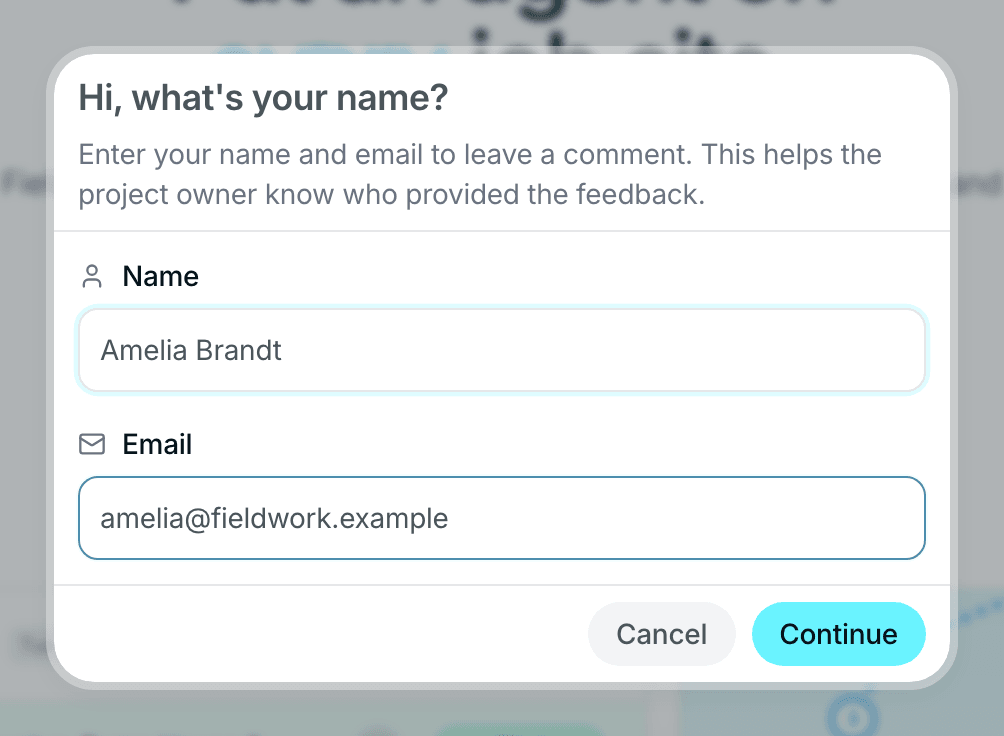
A reviewer opening the link sees the project the way your team does, minus the parts they cannot use: the canvas with pins and threads, the device switcher, the list of annotations, and the board if you allowed it. Their comments are marked as coming from a guest, with the name they entered.
Invite by email
Prefer to send the link yourself? In the same dialog, enter one or more email addresses and add a note. layernote sends each person the link with your message, so the invitation comes from a recognisable place and the reviewer does not have to hunt for it in a chat thread.
For colleagues who need to act on feedback, invite them into the workspace instead. See Workspaces and folders.