Get started
Getting started
From a new account to your first reviewed project: create a project, leave feedback, invite reviewers, track it to done.
layernote is where design feedback lives: pinned to the exact element on a live site, a Figma frame or an uploaded file, and tracked until it is fixed. This page takes you from a new account to a project your client or team can review, in about ten minutes.
Create your account
Sign up at app.layernote.io/register with your email address or a Google account. Every new account starts with a 14-day free trial, so you can try everything before you pick a plan.
Your account comes with a workspace: the home for your projects and the people you work with. Agencies usually keep one workspace per team and use folders per client inside it.
Create a project
Click New project, give it a name and pick a type:
| Type | Use it for | What you need |
|---|---|---|
| Website | Feedback on a live site, plus design comparison once you link a Figma file (coming soon) | The site's URL |
| Figma design | Design-only review of Figma frames, without a live site (coming soon) | A link to the Figma file |
| Static files | Images and PDFs: exports, print work, mockups | The files |
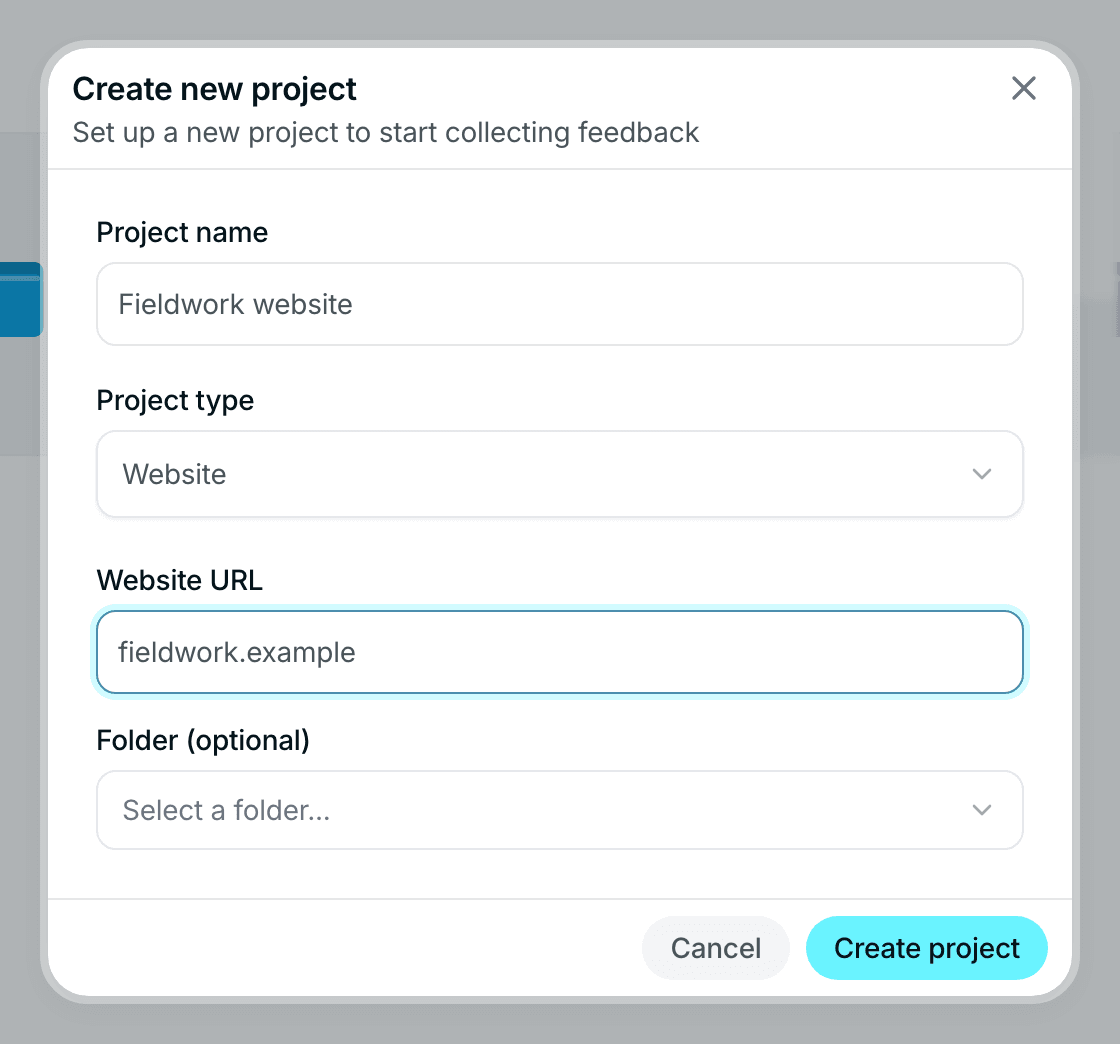
A Website project shows the live site inside layernote through a proxy, so nobody installs anything: no browser extension, no script on the site. Paste the URL and the page is ready to comment on.
Leave feedback
Open the project. The toolbar at the top has three modes:
- Browse: click through the site like a visitor, to reach the page or the state you want to comment on.
- Comment: click any element to pin a numbered comment to it. layernote stores the element and a screenshot with the comment, so it stays attached to the right spot even when the page around it changes.
- Inspect: click an element to read its computed styles: font, size, color, spacing. Useful when the feedback is "this should be 16 pixels, not 14".
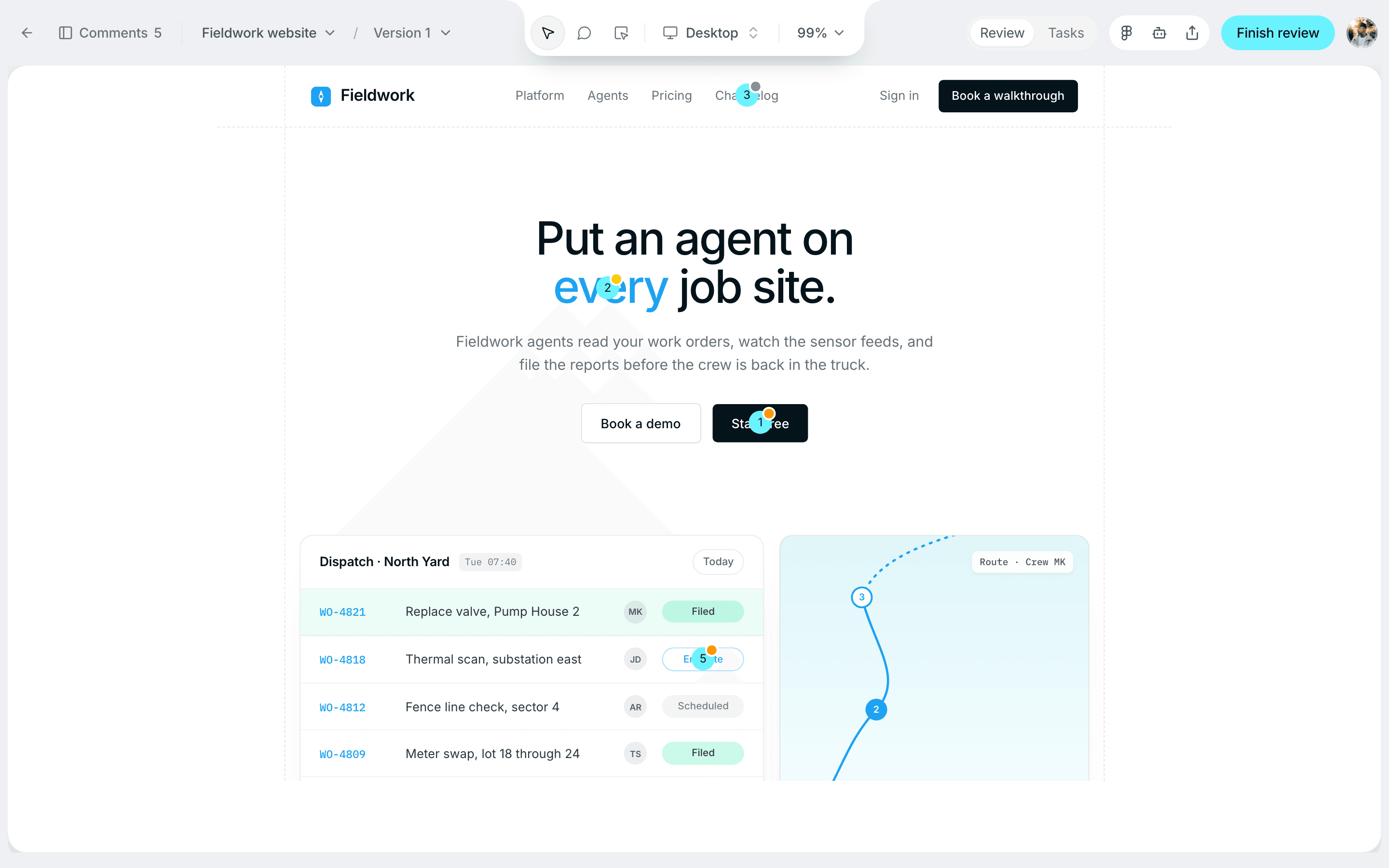
Switch between Desktop, Tablet and Mobile at the top to review each breakpoint on its own.
Every comment opens a thread. Reply, resolve it when the fix is in, or reopen it if it is not.
Invite reviewers
Open Share in the project header. Two kinds of people can join a project:
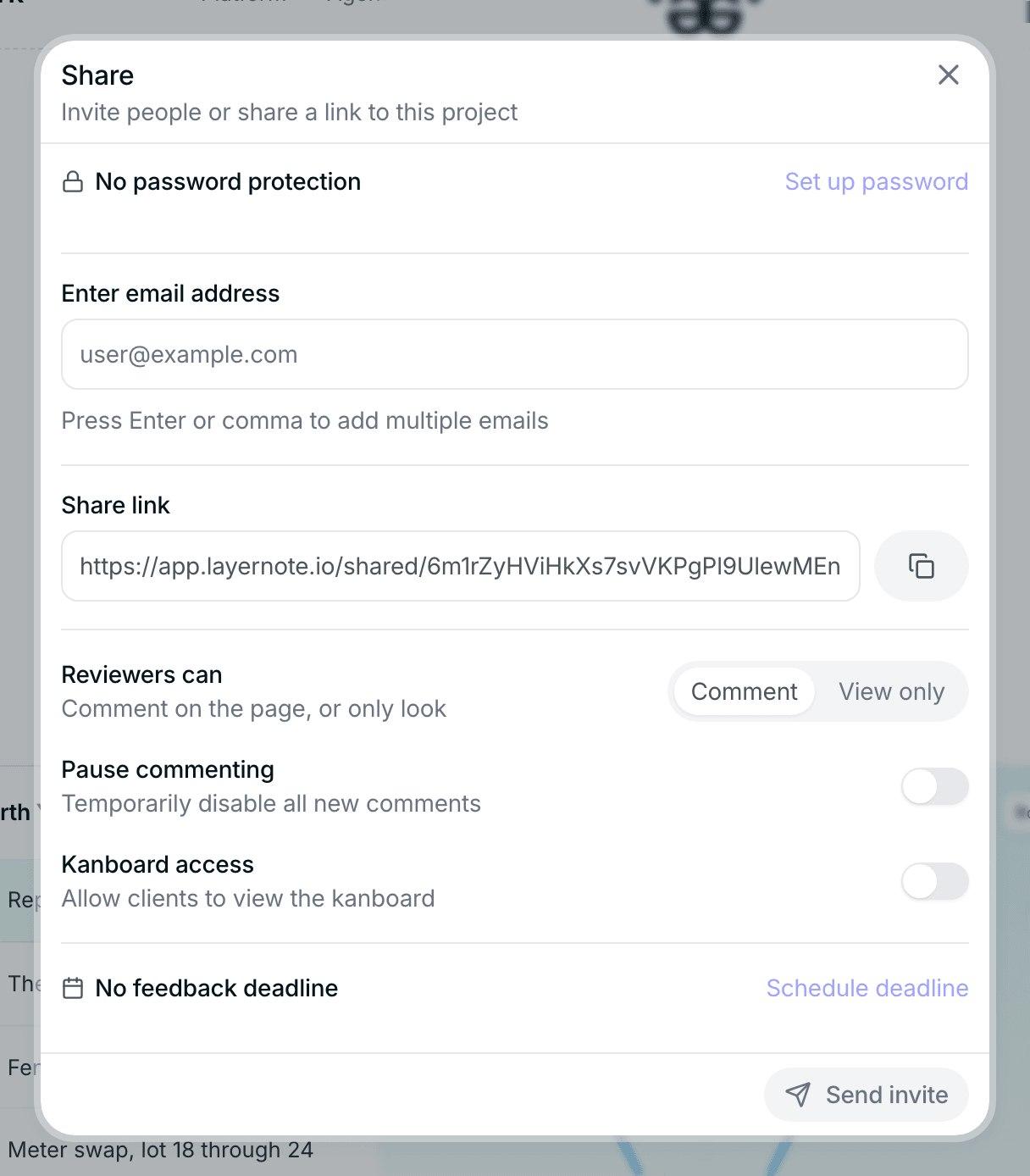
- Reviewers get a share link. They need no account and take no seat: they open the link, type a name and start commenting. From the same dialog you can make the link view only, protect it with a password, set a feedback deadline with email reminders, pause new comments once a round is closed and, on Studio and Team, let them see the board.
- Team members are invited into the workspace by email. They see every project in the workspace and count toward the seats in your plan. See Plans and limits.
Share links are the normal way to work with clients. Nobody has to sign up to give feedback.
Track feedback to done
Every comment is also a card on the project's board, in one of four columns: Open, In Progress, In Review, Resolved. Move cards as work happens, or rename the columns and add your own to match how your team works. From the Share dialog you can give reviewers access to the board, so a client can watch fixes land without asking for a status update.
When the fixes go to a developer or a coding agent, AI access gets the open feedback out of layernote and, once the code is deployed, checks the live site to confirm what was fixed.
Next steps
- Annotations: everything a comment can carry, plus inspect mode, devices and versions.
- Kanban board: shape the columns to your workflow and let clients follow along.
- Client sharing: access levels, passwords, deadlines and reminders for share links.
- Design comparison: link a Figma file and let layernote find every difference between the design and the live page. Coming soon, while Figma reviews our app.
- AI access: connect Claude Code or Cursor and let the agent fix the open feedback in your codebase.
- Plans and limits: what each plan includes.