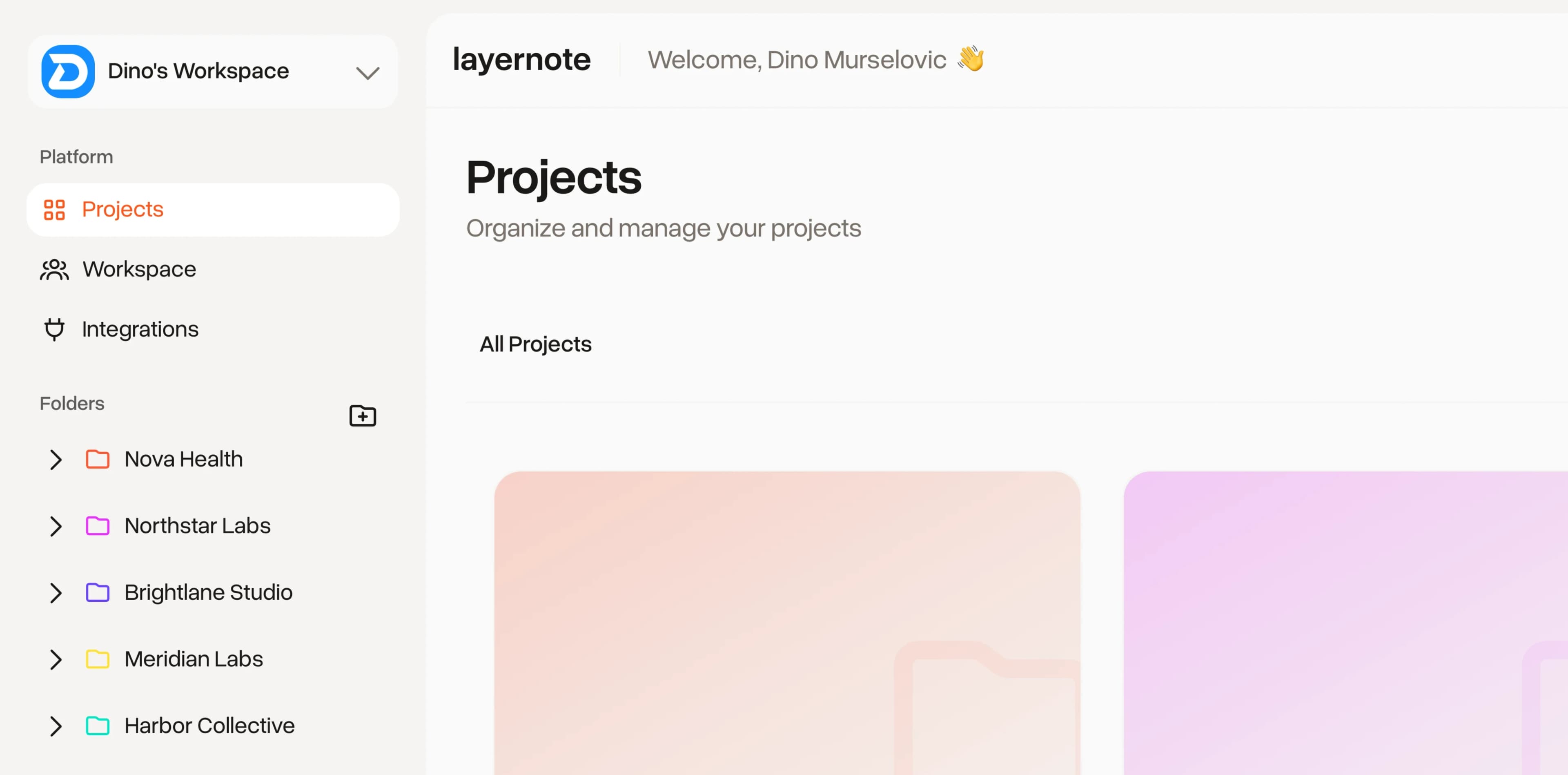
Annotate live websites without touching code
Click directly on any website and leave feedback where the issue is. No screenshots, no extensions, no code.

Mar 22, 2026
Annotate live websites without touching code
Your developer just deployed the latest version of the website to staging. Time for review. You open the link, spot a dozen things that need fixing, and now you need to communicate them.
Option A: Take twelve screenshots, annotate them in Figma or Preview, number them, write descriptions for each, send them over. Your developer will still ask follow-up questions.
Option B: Click directly on the website and leave your feedback where the issue is.
How website annotation works in layernote
Step 1: Create a website project
Paste your URL — staging or production — and layernote loads it in a visual canvas. No browser extension required. No code snippet to install.
Step 2: Click to annotate
See a misaligned button? Click it. A typo in the hero section? Click the text. A section that doesn't match the Figma? Click anywhere on it.
Each annotation captures:
- The exact element you clicked (via CSS selector)
- The position on the page
- The viewport (desktop, tablet, or mobile)
- The page URL
Your feedback is tied to the element, not a screenshot. If the layout shifts, the annotation follows.
Step 3: Add details
For each annotation you can:
- Write a description
- Set a priority (low, medium, high, critical)
- Categorize it (UI issue, content error, feature request, etc.)
- Assign it to a specific team member
- Set a due date
- Attach files or reference images
Step 4: Track on the kanban board
Every annotation shows up on the project's kanban board. Drag cards between columns, filter by assignee or priority, and see at a glance what's open, in progress, and resolved.
Multi-device review
Checking different viewports is tedious. In layernote, switch between desktop, tablet, and mobile with one click. Annotations are viewport-aware — feedback left on mobile stays on mobile. Your team sees exactly which device the issue affects.
Share with clients and stakeholders
Need external feedback? Generate a share link. Client opens it, clicks on the website, leaves comments. No account. No app to install. No "can you annotate the screenshot and send it back?"
You control the permissions:
- View only — They can see annotations but not add new ones
- Comment — They can add feedback
- Edit — Full access to create, modify, and resolve
Add a password for extra security. Set a deadline. layernote sends reminders automatically.
Real-time collaboration
Multiple people reviewing the same project? You can see who's online. New annotations appear instantly. Resolved items update across everyone's screen. No more "did you refresh?"
If you want tips on making the most of visual annotations, check out 5 tips for faster design reviews.
From annotation to resolution
The loop:
- Reviewer clicks on an element and leaves feedback
- Developer gets notified, sees the exact element and context
- Developer makes the fix and marks the annotation as resolved
- Reviewer sees the resolution and either confirms or reopens
No meetings. No Slack threads. No follow-up emails asking "which button did you mean?"
Try it on your website
Paste a URL. Start annotating. It takes seconds. Get started free.
Read next
5 tips for faster design reviews
5 tips for faster design reviews
Introducing layernote — Visual feedback for design and product teams
Introducing layernote — Visual feedback for design and product teams
Why design feedback is broken
Why design feedback is broken
Get started
Because feedback shouldn'tbe the hard part.
Give your clients a clear way to review. Give your team a clear way to resolve. Done.